
Batix APK v 1.6 Download Charging Photo for Android 2026
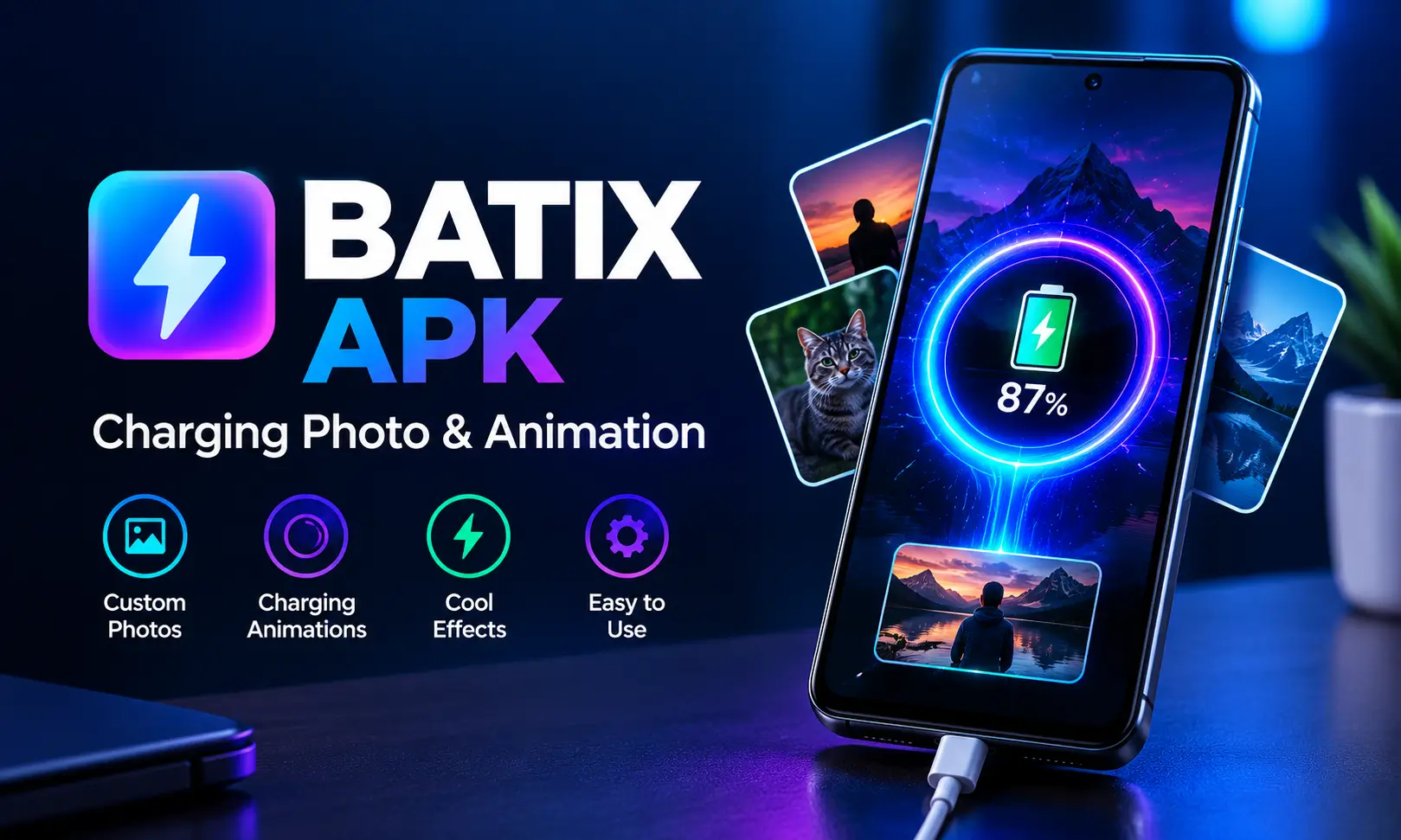
Batix APK is an Android personalization app that turns the standard charging screen into an animated display featuring your own photos, colorful charging rings, and neon effects. You don’t need to see the same battery indicator every time you plug in your phone, you can customize the screen with different themes, adjust the animation’s appearance, and monitor your battery level.
The Batix Charging Photo app also includes automatic charging animations, battery status information, and a full charge alarm. It is designed for users who want to personalize their phones without changing the entire interface or installing a custom launcher.
What Is Batix?
Batix apk is a charging animation application for Android. Its main purpose is to make charging more personalized by displaying an animated photo screen when you connect your charger.
You can select a picture from your gallery, choose an animation style, and adjust how the charging effect appears on your display. Depending on your preferences, the result can be a simple circular charging ring, a colorful energy effect, or a bright neon-style animation.
The app is useful if you enjoy customizing your home screen, lock screen appearance, or other visual elements on your phone. It adds a separate charging experience rather than replacing Android’s main interface. Also check: Sony Camera APK & TVS iQube App.
Once configured, the animation starts automatically when the phone detects a charging connection. The app also provides basic battery information and a notification when the battery reaches 100%.
Batix Charging Photo App Overview
Here are the main details of the application.
| App Information | Details |
|---|---|
| App name | Batix – Charging Photo |
| Package name | com.batterycharginganimation.bitix |
| Developer | Wajid Ali |
| Version | 1.6 |
| File size | 23.96 MB |
| File format | XAPK |
| Category | Utilities and Tools |
| Price | Free, ad-supported |
| Platform | Android |
| Language | English |
Key Features of Batix Mod APK
1. Custom Photo Charging Animation
The main feature of Batix app for android is the ability to use your own photo as part of the charging screen. You can choose a selfie, a family picture, a photo of your pet, or another image saved on your phone.
The selected picture becomes part of the charging display, giving it a more personal appearance than the standard battery indicator. You can change the picture whenever you want, so you are not limited to one design.
This feature is particularly useful for people who like matching their phone’s appearance to their personal preferences. Also visit Paisa kamane Wala App.
2. Neon Themes and Colorful Charging Rings
Batix charging photo includes visual styles built around neon colors, circular effects, and colorful energy animations. Other design styles include cyber, RGB, luxury, abstract, and technology-inspired looks.
A neon theme can create a bright, high-contrast effect, while a simpler circular animation gives the screen a cleaner appearance. You can experiment with different styles until you find one that works well with your chosen picture.
On phones with AMOLED displays, dark backgrounds can also complement bright animation elements. However, the effect depends on the theme and the display settings you use.
3. Automatic Charging Animation
You do not need to open the app every time you want to see the charging effect. After completing the initial setup and granting the required permission, the animation can appear automatically when you connect your charger.
This makes the feature convenient for everyday use. Plug in your phone, and the customized charging display appears without requiring you to select the same settings repeatedly.
The animation is intended to run while the phone is charging rather than remaining active continuously throughout the day.
4. Battery Monitor and Charging Status
Batix premuim apk provides basic battery information to help you check your phone’s charging progress. You can view the battery percentage and charging status, along with basic battery health information where available.
These details are useful when you want to see how much charge remains without navigating through several system menus.
Keep in mind that a battery monitor is not the same as a professional battery diagnostic tool. Its information should be treated as a basic status overview rather than a complete assessment of battery condition.
5. Full Charge Alarm
Another useful feature of batix apk is the full charge alarm. It sends a notification when the battery reaches 100%, reminding you that the phone has finished charging.
This can be helpful if you regularly leave your phone plugged in while working, studying, or getting ready for the day. Instead of repeatedly checking the screen, you can use the notification as a reminder.
The alarm is a convenience feature, not an automatic charging cutoff. It does not physically disconnect the charger or guarantee protection against battery wear.
6. Adjustable Animation Settings
Batix apk offers customization controls for changing how the charging effect looks on your screen. You can adjust elements such as the animation’s size, position, opacity, and glow intensity.
These controls matter because a design that looks good on one phone may appear too large or too bright on another. A smaller charging ring can work better on a compact display, while a brighter effect may suit someone who prefers a more noticeable animation.
Try a few adjustments before settling on your final design. The aim is to make the charging screen attractive without covering too much of the display.
How to Download and Install Batix APK for Android
There are two ways to install the application on a compatible Android phone: through Google Play, where available, or by manually installing the app package.
Method 1: Install Through Google Play
If the app is available in your region, installing it through Google Play is the simpler option.
- Open Google Play on your Android phone.
- Search for Batix APK Charging Photo.
- Check the app name and developer before installing.
- Tap Install and wait for the process to finish.
- Open the app and complete the initial setup.
Method 2: Install the APK or XAPK Manually
If you have an XAPK package, the process may differ slightly from installing a standard APK. An XAPK can contain additional application files, so it may require a compatible installer rather than opening directly through the phone’s file manager.
- Download the Batix Charging Photo APK to your Android device.
- Open Settings and locate the option for installing unknown apps. The exact menu varies by Android version and manufacturer.
- Allow the browser or file manager you are using to install apps from that source.
- Open the downloaded file. If it is an XAPK, use a compatible XAPK installer if Android cannot process it directly.
- Follow the installation instructions and wait for completion.
- Open Batix apk and configure the charging screen.
- Return to Settings and disable the unknown-app installation permission for that source when you no longer need it.
How to Set Up Your Charging Photo
After installing the app, spend a few minutes configuring the charging screen. The initial setup determines how the animation looks and whether it can appear when you connect your charger.
- Open Batix APK: Launch the application and review the available customization options.
- Allow overlay permission: Enable the option to display over other apps when Android requests it. This permission allows the charging animation to appear above other content.
- Choose a theme: Select a neon effect, charging ring, RGB style, or another available design.
- Select your photo: Choose an image from your gallery when prompted. Pick a clear picture that remains recognizable when displayed in a smaller area.
- Adjust the appearance: Change the animation’s size, position, opacity, and glow until the layout looks right.
- Apply your settings: Save or apply the selected design.
- Connect your charger: Plug in your phone to check whether the animation starts correctly.
If the photo looks stretched or the animation covers too much of the screen, return to the customization controls and make small adjustments.
Permissions Explained
Batix apk uses certain Android permissions to display its animation and support its background features. Understanding their purpose makes it easier to configure the app.
| Permission | Purpose |
|---|---|
| Display over other apps | Allows the charging animation to appear over the current screen. |
| Wake lock | Helps keep the required processing active when needed. |
| Foreground service | Supports an ongoing operation while the charging feature is active. |
| Notifications | Allows charging alerts, including the full charge notification. |
| Internet access | Supports online functions such as advertising. |
| Network and Wi-Fi state | Allows the app to check network connectivity. |
| Run at boot | Supports startup-related behavior after the phone restarts. |
| Usage access | May be used for functions that depend on app-usage information. |
| Photo access | Lets you select an image for your customized charging display. |
The overlay permission is particularly important because the charging animation cannot appear above other content without the necessary access. Photo access is relevant when selecting an image from your gallery.
Is Batix APK Mod Safe to Use?
Batix apk premium is a customization utility, so its main purpose is to change the charging display rather than manage sensitive phone functions. The important thing is to install a genuine application package and understand the permissions it requests.
Before installing, check the app’s identity and avoid packages that have been repackaged with unrelated files. You should also review overlay access because it allows the app to display content over other applications.
A clean malware scan is useful, but no scan can guarantee that a file is completely safe. Keeping Android updated and reviewing app permissions are sensible steps for any application you install.
Common Batix APK Problems and Fixes
Some issues come from Android’s permission settings or manufacturer-specific battery management rather than the charging animation itself.
| Problem | Possible solution |
|---|---|
| Animation does not appear | Check that Display over other apps is enabled and test the animation while charging. |
| Animation stops after restarting the phone | Review auto-start and background-activity settings, especially on Xiaomi, Vivo, and Oppo devices. |
| Photo looks stretched | Adjust the image position and size, or select a photo with a more suitable aspect ratio. |
| Theme does not apply | Close and reopen the app, select the theme again, and apply the settings. |
| Concern about battery consumption | The animation is designed for charging periods, but actual power use depends on screen activity and device settings. |
| Full charge notification does not appear | Check notification permission and your phone’s notification settings. |
How to Disable or Remove Batix APP Download
If you no longer want the charging animation, open Batix apk and disable the active charging effect. You can also revoke its overlay permission through Android Settings to prevent it from appearing over other apps.
To remove the application completely, open Settings → Apps → Batix → Uninstall. Menu names may differ by device. Uninstalling the app removes its charging-screen functionality, while Android’s standard charging display remains available.
Conclusion
Batix APK offers a simple way to personalize your Android phone’s charging experience. Its main features include custom photo animations, neon and circular themes, automatic activation when charging starts, battery status information, and a full charge alarm.
The setup mainly involves choosing a photo, selecting a theme, adjusting the animation, and enabling the required overlay permission. If you enjoy phone customization and want something more personal than the standard charging screen, Batix app is an option to consider.
Frequently Asked Questions

Abhishek Sharma is a technology enthusiast and experienced content writer with a strong interest in mobile apps, games, software, and the latest developments in the digital world. He enjoys exploring new applications and gaming platforms, testing their features, and sharing useful information in a simple and easy-to-understand way.