
Easy Gallery Photo Editor App v4.01 Download (Android/iOS)
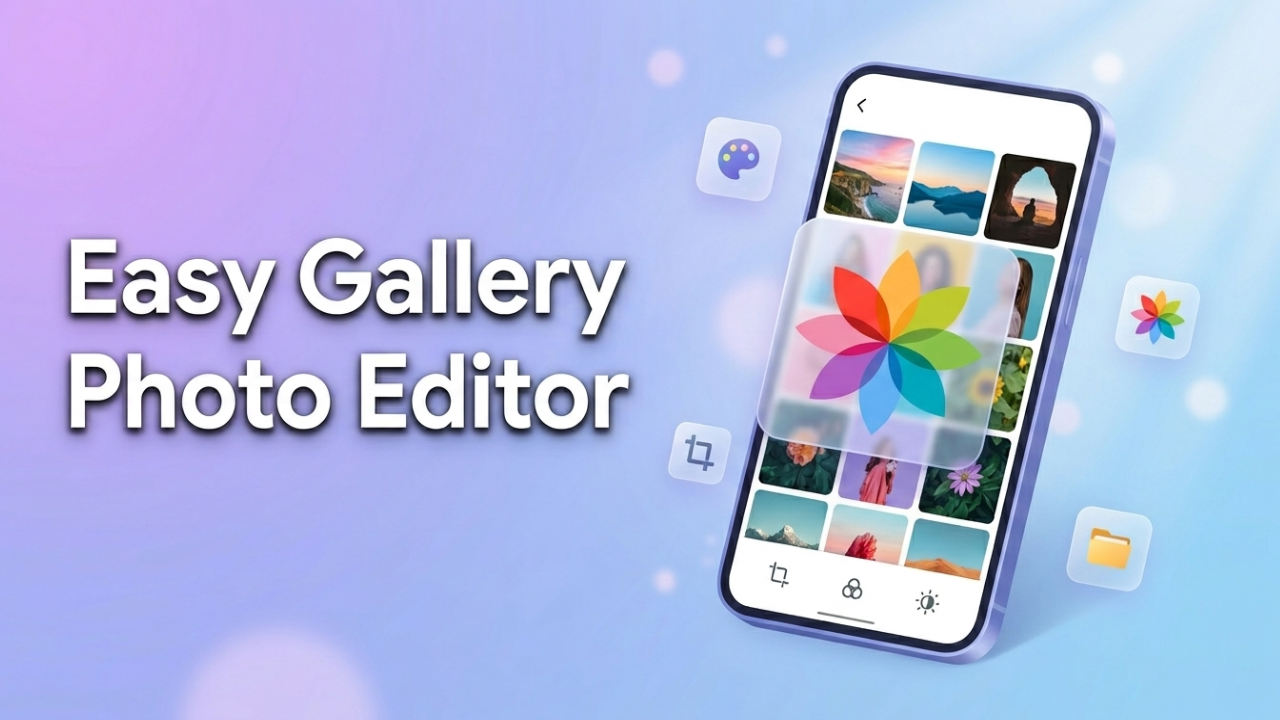
Most gallery apps on the Play Store either bury you in ads or strip out the editing tools you actually need. Easy Gallery Photo Editor sits in a weird middle spot it’s lightweight, it works offline, and it doesn’t pretend to be Photoshop. We’ve had it running on three phones for the past two weeks. Here’s what’s worth knowing before you install it.
What Is Easy Gallery Photo Editor
Easy Gallery Photo Editor is an Android gallery app with built-in editing tools. Think of it as a replacement for the stock gallery on phones that ship without one or a backup option if you’ve grown tired of Google Photos pushing cloud sync at every turn.
The app handles the basics most people want: browse your photos and videos by folder, edit on the spot, hide private albums, and trim clips without exporting to another app. It’s not trying to be a full creative suite. It’s trying to be the gallery you don’t have to think about.
Who’s it for? Anyone who wants a clean offline gallery with light editing baked in. Who should skip it? Power users who need RAW support, layer editing, or AI-driven tools you’ll outgrow this one fast.
The APK runs on Android 5.0 and up. File size sits around 15-25 MB depending on the build, which is refreshingly small for a gallery app in 2026.
Key Features
Folder-Based Browsing
Photos and videos show up grouped by folder, the way Android actually stores them. You can hide folders you don’t want cluttering the main view handy for app screenshots, WhatsApp media, or that one folder full of memes you’re not ready to delete. Also check: Mollygram App.
The grid view is adjustable. Pinch to zoom in or out and the thumbnail size changes on the fly. Small detail, but it matters when you’re scrubbing through hundreds of photos looking for one specific shot.
Built-In Photo Editor
The editor covers what most people need day to day: crop, rotate, flip, adjust brightness, contrast, saturation, and apply filters. There’s a decent selection of filter presets, plus manual sliders if you want finer control.
You also get drawing tools, text overlays with a handful of fonts, and basic stickers. Nothing fancy. The “auto-enhance” button does what you’d expect bumps up exposure and contrast and calls it a day. Sometimes it nails the photo. Sometimes it crushes the shadows. Use with judgment.
Video Trimmer
Videos can be trimmed without leaving the app. Pick start and end points on a timeline scrubber, hit save, and you get a new file. There’s no fancy multi-clip editing or transitions just a straight cut. For quickly chopping the dead air off the start of a clip before sending it to someone, that’s all you really need.
Hidden Folder and Privacy
You can mark folders as hidden and lock them behind a PIN or fingerprint. Hidden folders don’t show up in the regular grid, and they’re excluded from your main scroll. It’s not military-grade encryption anyone with file access can still find the original folders on storage but for keeping casual snoopers out of your photos, it does the job.
Recycle Bin
Deleted photos move to a recycle bin instead of vanishing immediately. They sit there for 30 days by default, then get cleared. Saved us once already when a swipe-delete went rogue on the Pixel.
Other Tools Worth Mentioning
You can resize and compress images directly, useful when an app refuses to accept a 12 MB photo. There’s a slideshow mode with adjustable timing. Bulk select lets you move, copy, share, or delete dozens of files at once. EXIF data is viewable per photo if you tap into the info panel not editable, just readable.
Pros and Cons
What works well:
- Genuinely fast. The app opens almost instantly even with 3,000+ photos in the library.
- No internet permission means no sneaky data uploads a real win for privacy.
- Bulk operations are smooth. We moved 400 photos between folders in one go without a stutter.
- Recycle bin saved us at least twice during testing.
What doesn’t:
- The included filters look dated. They get the job done but don’t expect anything close to VSCO or Snapseed quality.
- Video trimming is frame-imprecise. Cuts can land a few hundred milliseconds off where you actually wanted them.
- Text overlay font selection is thin. Maybe eight options, all fairly basic.
- The hidden folder feature only hides files within the app it doesn’t actually encrypt them.
How to Download and Install
Grab the APK from a trusted source APKMirror and APKPure are the usual safe bets. Avoid sketchy sites with five popups and a “fast download” button that’s actually an ad.
Before installing, head to Settings → Apps → Special access → Install unknown apps and enable permission for your browser or file manager. Open the downloaded APK, tap install, and you’re done.
The app will ask for storage permission on first launch. Grant it. Without storage access, it can’t read your photos that’s the whole point.
One thing we missed at first: the hidden folder PIN setup is buried under Settings → Privacy. Took us a few minutes of poking around to find it.
Final Verdict
Easy Gallery Photo Editor isn’t going to replace Lightroom, and it’s not trying to. What it does well is sit quietly on your phone, open fast, and handle the 90% of photo tasks most people actually do browsing, light edits, quick trims, and occasional cleanup.
Download this if you want a fast offline gallery with editing tools that don’t get in the way. Skip it if you need pro-level editing, RAW support, or cloud backup those needs aren’t on this app’s radar. After two weeks of daily use, we’re keeping it installed on the Pixel. That’s about the highest compliment a gallery app can earn.

Josh is a technology writer and app enthusiast who specializes in Android apps, mobile games, APK downloads, and digital tools. He enjoys testing new applications, exploring game features, and creating easy-to-follow guides that help readers install, use, and troubleshoot apps with confidence.