
Download Motion Ninja APK Mod for Android Without Watermark
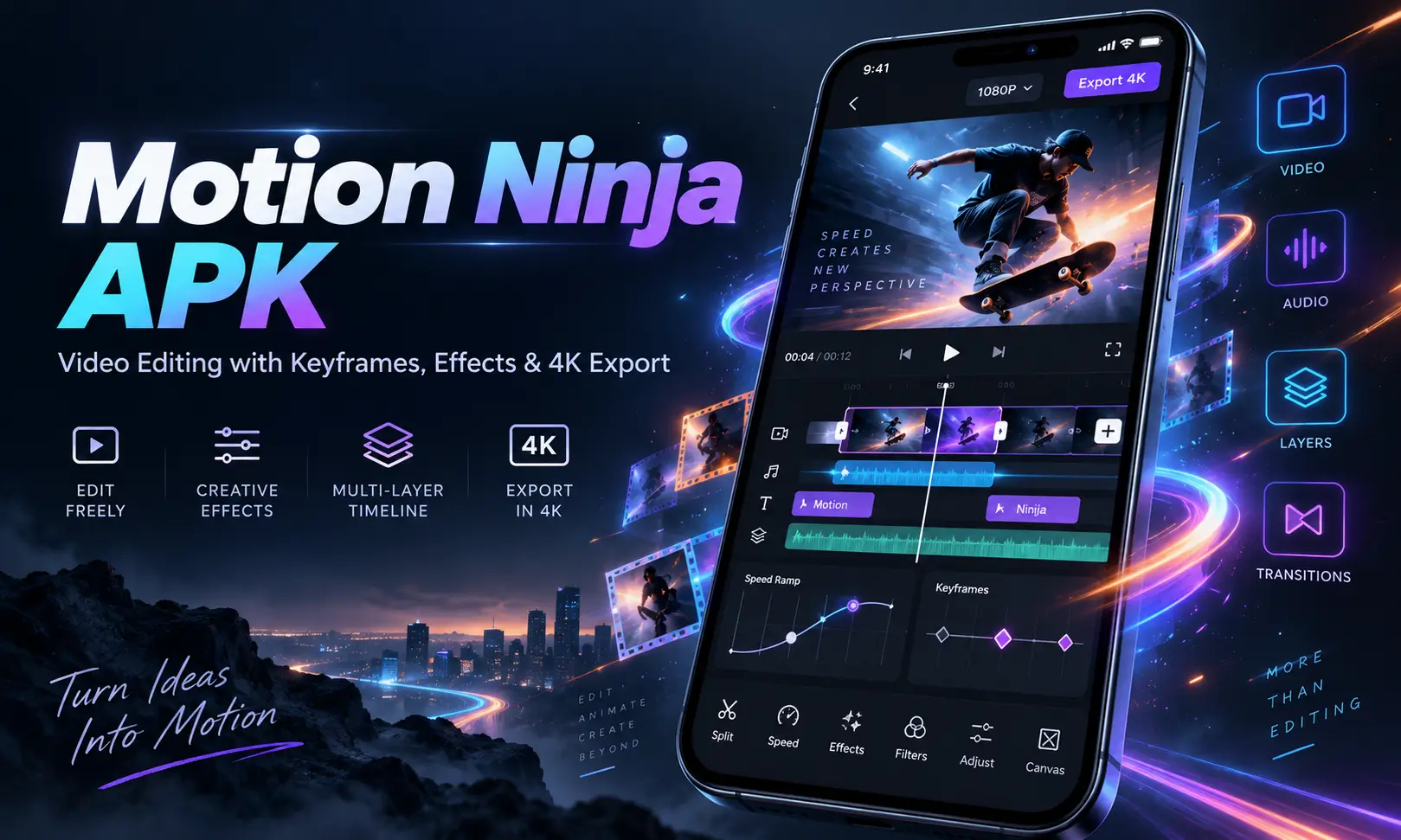
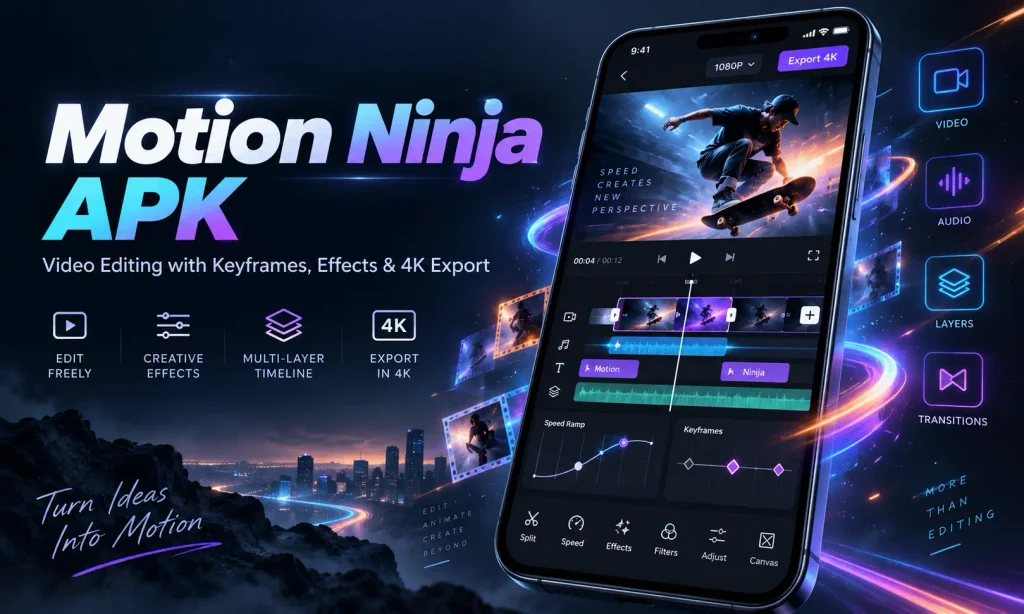
Motion Ninja APK is a feature-rich mobile video editor made for creators who want more control than a basic cut-and-trim app can offer. It combines keyframe animation, multi-layer editing, visual effects, chroma key, velocity control, smooth slow motion, text animation, transitions, and high-resolution export inside a mobile-friendly interface.
There are many Android video editors available online Motion Ninja video editor is interesting in the way that it sits between simple social media editors and more complicated professional editing software. You can create a quick TikTok or Instagram Reel in a few minutes, but you can also build much more detailed edits using layers, curves, masking, keyframes, 3D effects, and advanced motion tools.
For editors who enjoy AMVs, fan edits, cinematic reels, velocity edits, animated photos, gaming videos, short-form content, or creative social media clips, Motion Ninja mod apk provides a surprisingly deep editing toolkit. Also check: Meitu App & KwaiCut Video Editor App.
What Is Motion Ninja APK?
Motion Ninja pro is a mobile video editing and motion graphics application developed for Android and iOS devices. On Android, the package name is:
com.accarunit.motionvideoeditor
The application focuses heavily on motion-based editing. Instead of simply placing clips on a timeline and adding filters, Motion Ninja allows you to animate different properties using keyframes.
For example, you can gradually move text across the screen, zoom into a photo, rotate an object, animate an effect, change opacity, or create custom movement between different points in the timeline.
This makes it especially useful for:
- Anime music videos
- Fan edits
- TikTok edits
- Instagram Reels
- YouTube Shorts
- Cinematic videos
- Gaming edits
- Velocity edits
- Animated photos
- Music visualizers
- Promotional videos
- Movie-style titles
It also supports multi-layer projects, which means videos, images, text, effects, and audio can be placed on separate tracks.
Motion Ninja APK Information
| App Information | Details |
|---|---|
| App Name | Motion Ninja Video Editor |
| Developer | changpeng |
| Package Name | com.accarunit.motionvideoeditor |
| Category | Video Players & Editors |
| Platform | Android / iOS |
| Android Requirement | Android 5.0+ on recent third-party listings |
| License | Free |
| Ads | No |
| Latest Version | 4.1.8 |
| Export Quality | Up to 1080p, 2K and 4K depending on platform/features |
| File Format | APK / XAPK depending on source |
| Popular Uses | AMV, Reels, Shorts, velocity edits and motion graphics |
| Official Package | com.accarunit.motionvideoeditor |
Main Features
Motion Ninja apk online has a much deeper feature set than many traditional Android editing apps. Here are the tools that matter most in real editing projects.
Keyframe Animation
Keyframes are one of Motion Ninja’s strongest features.
A keyframe tells the editor where an object should be at a particular point in time. Add another keyframe later, and Motion Ninja automatically creates the movement between the two positions.
You can use keyframes for:
- Position
- Scale
- Rotation
- Opacity
- Text animation
- Effects
- Filters
- Images
- Video layers
- Motion graphics
This is one of the main reasons Motion Ninja feels closer to a mobile motion graphics editor than a basic video cutter.
Custom Animation Curves
Simple keyframes can sometimes create robotic movement. Motion Ninja improves this by allowing you to control animation curves.
Depending on the available version and platform, curve options can include styles such as:
- Bezier
- Bounce
- Step
- Loop
- Random
Curves make animations accelerate, slow down, bounce, or move more naturally instead of traveling at one constant speed.
Multi-Layer Video Editing
Motion Ninja supports multiple layers on the timeline.
You can combine:
- Video clips
- Photos
- Text
- Music
- Voiceovers
- Overlays
- Effects
- Stickers
- Graphics
This is extremely useful when creating more advanced edits.
For example, you can place a subject video on one layer, background footage underneath it, animated text above it, and effects on additional layers.
500+ Effects and Presets
Motion Ninja includes a large collection of visual effects and animation presets.
Depending on the platform and current version, available effect categories can include:
- Shake
- Glow
- Blur
- VHS
- Distortion
- 3D
- Lens flare
- Particles
- Motion blur
- Music visualizers
Presets are useful when you want an attractive effect without building every animation manually.
More experienced editors can customize effects further using keyframes and curves.
Smooth Slow Motion and Optical Flow
Slow-motion editing is another major reason people use Motion Ninja.
Basic video editors often create slow motion by simply repeating frames. That can make movement look choppy.
Motion Ninja includes more advanced slow-motion tools that use frame interpolation or optical-flow-style processing to create smoother movement.
This can work well for:
- Sports clips
- Cinematic transitions
- Dance videos
- Anime edits
- Gaming montages
- Dramatic moments
- Velocity edits
You can also combine slow motion with speed ramping to create fast-slow-fast sequences.
Velocity Editing and Time Remapping
Velocity editing has become extremely popular on TikTok, Reels, Shorts, and fan-editing communities.
Motion Ninja supports custom speed curves and time remapping, allowing you to control how quickly different sections of a clip play.
For example, a clip can:
Start normally → speed up → suddenly slow down → return to normal speed.
When synchronized with music beats, this technique can make even simple footage feel far more professional.
Chroma Key and Green Screen
Motion Ninja also includes chroma key editing.
Chroma key allows you to remove a particular background color, normally green or blue.
Once the background has been removed, another image or video can be placed behind the subject.
This is useful for:
- Green-screen videos
- Meme edits
- Gaming videos
- Product videos
- Creative backgrounds
- Social media effects
- Reaction videos
For better results, use footage with even lighting and a clearly separated green background.
Masking and Advanced Compositing
Masking allows you to hide or reveal selected areas of a video or image layer.
Depending on the available tools, Motion Ninja can support different mask shapes and feathering controls.
Masking is useful for creating:
- Split-screen edits
- Object reveal effects
- Transition effects
- Clone-style edits
- Layer blending
- Background replacements
- Cinematic compositions
When combined with keyframes, masks can also be animated over time.
3D Camera and 3D Effects
One of the more advanced sides of Motion Ninja is its 3D-related editing.
Its feature listings include tools for 3D scenes, 3D camera effects, and 3D camera tracking in premium toolsets.
These features can be useful for creating motion that feels more dimensional than standard 2D zoom and pan effects.
You can use them for:
- 3D titles
- Moving camera effects
- Dynamic photo edits
- Cinematic intros
- Fan edits
- Promotional graphics
These tools usually require more practice than basic transitions, but they can produce some of the most impressive results in the app.
Text and Title Editing
Motion Ninja includes animated text and title tools that work particularly well for social media content.
You can create:
- Captions
- Intro titles
- Lower thirds
- Lyrics
- Quotes
- Cinematic titles
- Promotional text
Because text can also be animated using keyframes, it is possible to create custom movements instead of relying entirely on presets.
Transitions
Motion Ninja includes dozens of transitions that can be applied between clips.
Common styles include:
- 3D transitions
- Shake
- Blur
- Glitch
- Zoom
- Swipe
- VHS-style effects
There are reportedly more than 50 transition options in the app’s feature set.
I would still recommend using transitions selectively. Too many different transition styles in one project can quickly make an edit look messy.
Filters and Color Correction
Basic color controls are available for adjusting the overall look of footage.
Depending on the version, you can work with controls such as:
- Brightness
- Contrast
- Color correction
- Filters
- Glow
- Exposure-style adjustments
The advanced toolset also includes a Color Lab feature for users who want more control over the appearance of their footage.
Moving Photo and Photo Animation
Motion Ninja is not limited to video clips.
You can also animate still images using movement, keyframes, effects, particles, and other tools.
This is useful when creating:
- Photo reels
- Tribute videos
- Music edits
- Animated posters
- Social stories
- Parallax-style effects
Even a static image can become much more engaging with slow zooming, motion blur, particles, or controlled camera movement.
AI Effects and Sky Replacement
Some recent feature descriptions also mention AI-assisted tools such as AI effects and video sky replacement.
These tools are designed to automate edits that would otherwise require more complex masking or compositing.
Availability may depend on the app version, platform, or premium subscription.
Audio Editing
Good editing is not only about visuals. Motion Ninja apk pro also provides audio tools for working with music and sound alongside your clips.
Depending on the version, editing options may include:
- Background music
- Voiceovers
- Audio extraction
- Sound synchronization
- Pitch adjustment
- Sound normalization
- Timeline audio editing
For short-form videos, aligning transitions and velocity changes with music beats can dramatically improve the final result.
Export Options
When your project is finished, Motion Ninja apk provides multiple export options. Supported quality levels can include:
- 1080p
- 2K
- 4K
The application can also support formats such as:
- MP4
- GIF
Higher-resolution exports naturally require more processing power, storage, and rendering time. For everyday Instagram, TikTok, or YouTube Shorts content, 1080p is normally more than enough.
How to Download Motion Ninja Mod APK Without Watermark
Downloading Motion Ninja APK is very simple when you’re using a trusted APK source.
Step 1: Check Your Android Version
Make sure your device meets the minimum Android requirement.
The compatible android version is Android 5.0 or newer.
Step 2: Download the APK File
Download the Motion Ninja APK from a source you trust.
Before installing, check that the package name matches:
com.accarunit.motionvideoeditor
Step 3: Allow APK Installation
If Android blocks the installation, open your device settings and allow installation from the browser or file manager you used to download the APK.
The exact wording can differ depending on your Android version.
Step 4: Open the APK
Locate the downloaded file in your Downloads folder and tap it.
Step 5: Install Motion Ninja
Tap Install and wait until Android finishes the process.
After installation, you can launch Motion Ninja from your app drawer.
How to Install Motion Ninja XAPK
Some platforms distribute newer versions as XAPK files rather than standard APK files.
An XAPK package may contain the application file plus additional resources.
If the file you downloaded ends in .xapk, a normal Android APK installer may not install it directly.
You will generally need an XAPK-compatible installer.
The process is usually:
- Download the Motion Ninja XAPK.
- Open it with an XAPK installer.
- Allow the required installation permission.
- Let the installer extract and install the included files.
- Open Motion Ninja after installation finishes.
How to Use Motion Ninja APK Pro
If you are new to the app, you do not need to learn every advanced feature immediately. Start with this simple workflow.
1. Create a New Project
Open Motion Ninja apk and start a new project.
Select the video clips or photos you want to edit.
2. Arrange Your Clips
Move clips into the correct order on the timeline.
Trim unwanted sections first.
3. Add Music
Import your background track or use available audio.
If you are making a beat edit, identify the important beats before adding effects.
4. Add Keyframes
Select a clip, image, or text layer and add keyframes for movement.
Start with simple zoom or position animation.
5. Add Effects
Experiment with blur, glow, shake, motion blur, 3D, particles, or other effects.
Do not overload every clip with effects.
6. Adjust Speed
Use speed curves or velocity editing where needed.
7. Add Text and Transitions
Insert titles or captions and apply transitions between important scenes.
8. Preview the Project
Watch the full video before exporting.
Pay attention to timing, audio synchronization, and any frames that appear frozen or misplaced.
9. Export
Choose your required resolution and quality, then export the finished video.
Motion Ninja Free vs Pro
Motion Ninja apk old version can be downloaded and used for free, while premium plans unlock additional tools and content.
| Feature | Free Version | Pro / VIP |
|---|---|---|
| Basic video editing | Yes | Yes |
| Multi-layer editing | Yes | Yes |
| Keyframe animation | Yes | Yes |
| Basic effects | Yes | Yes |
| Premium effects | Limited | More available |
| Advanced slow motion | Limited / feature dependent | Available |
| 3D Camera Tracking | Limited | Available in advanced tools |
| Frame Rate Changer | Limited | Available |
| Quality Enhancer | Limited | Available |
| Advanced AI tools | Limited | More available |
| Premium assets | Limited | Expanded access |
Motion Ninja vs Alight Motion
Motion Ninja and Alight Motion are both popular among mobile motion-editing users. Motion Ninja places strong emphasis on video effects, velocity editing, optical-flow slow motion, 3D tools, and fan-editing workflows.
Alight Motion APK is also extremely strong for:
- Motion graphics
- Vector editing
- Keyframes
- Graph editing
- Layer animation
For people focused heavily on AMVs, velocity edits, dramatic transitions, and effects-based social content, Motion Ninja can feel very natural.
For users building detailed motion graphics from shapes and graphic elements, Alight Motion may offer a different workflow.
Motion Ninja vs CapCut
CapCut apk is easier for beginners who mainly want quick social media editing.
It focuses heavily on:
- Templates
- Captions
- Social trends
- Filters
- Fast editing
- Short-form content
Motion Ninja apk as a steeper learning curve but gives users deeper manual control over animation and effects.
If you mainly want to create a Reel quickly, CapCut may feel simpler.
If you enjoy manually controlling keyframes, layers, speed curves, effects, and more detailed motion, Motion Ninja offers more creative depth.
Can You Use Motion Ninja on PC?
Motion Ninja APK is primarily designed for mobile devices.
There is no standard Motion Ninja for PC edition comparable to Adobe Premiere Pro or After Effects.
However, Android emulators can run compatible Android applications on a computer.
Performance depends heavily on your PC specifications and the emulator being used.
For serious desktop video editing, native PC editors usually provide a smoother workflow. But if you already know Motion Ninja and want to work from a larger screen, an emulator can be an option.
Common Motion Ninja APK Problems
Like any advanced mobile editing app, Motion Ninja apk can struggle when projects become complicated.
App Becomes Slow
Large projects with many effects, layers, high-resolution clips, and motion blur can put significant pressure on the device.
Try reducing unnecessary layers or closing background applications.
Export Gets Stuck
Some users have reported exports freezing near completion.
If this happens, try:
- Restarting the app
- Freeing storage space
- Lowering export resolution
- Removing a recently added effect
- Exporting a shorter section first
- Restarting the phone
Project Uses Too Much Storage
Video editing naturally creates project files, cached previews, imported media, and exported videos.
Regularly remove abandoned projects and unnecessary exports.
Editing Feels Complicated
Motion Ninja can initially feel confusing because it offers more controls than basic editors.
Learn keyframes, layers, speed, and export first. Once those four areas feel comfortable, move into curves, masking, chroma key, and advanced effects.
Pros and Cons of Motion Ninja APK Mod
| Pros | Cons |
|---|---|
| Powerful keyframe animation | Can feel complicated for beginners |
| Multi-layer timeline | Heavy projects may lag on weaker phones |
| Excellent for AMVs and fan edits | High-resolution projects require substantial storage |
| Smooth slow-motion tools | Some advanced tools require premium access |
| Velocity and time-remapping controls | Complex effects can increase export time |
Final Thoughts
Motion Ninja APK is one of the more capable mobile video editors for people who want to move beyond simple trimming, music, and filters.
Its biggest strengths are keyframe animation, multiple editing layers, custom curves, visual effects, chroma key, velocity editing, smooth slow motion, masking, 3D tools, and high-resolution exporting.
Beginners may need some time to understand the interface, but once you become comfortable with layers and keyframes, the app opens up a huge range of creative possibilities.
For AMVs, fan edits, Instagram Reels, TikTok videos, gaming clips, animated photos, music edits, and cinematic short videos, Motion Ninja APK provides enough depth to handle both casual and advanced mobile editing projects.
Frequently Asked Questions

Josh is a technology writer and app enthusiast who specializes in Android apps, mobile games, APK downloads, and digital tools. He enjoys testing new applications, exploring game features, and creating easy-to-follow guides that help readers install, use, and troubleshoot apps with confidence.