
StbEmu Pro APK v2.0.24 Download Free for Android & Fire TV
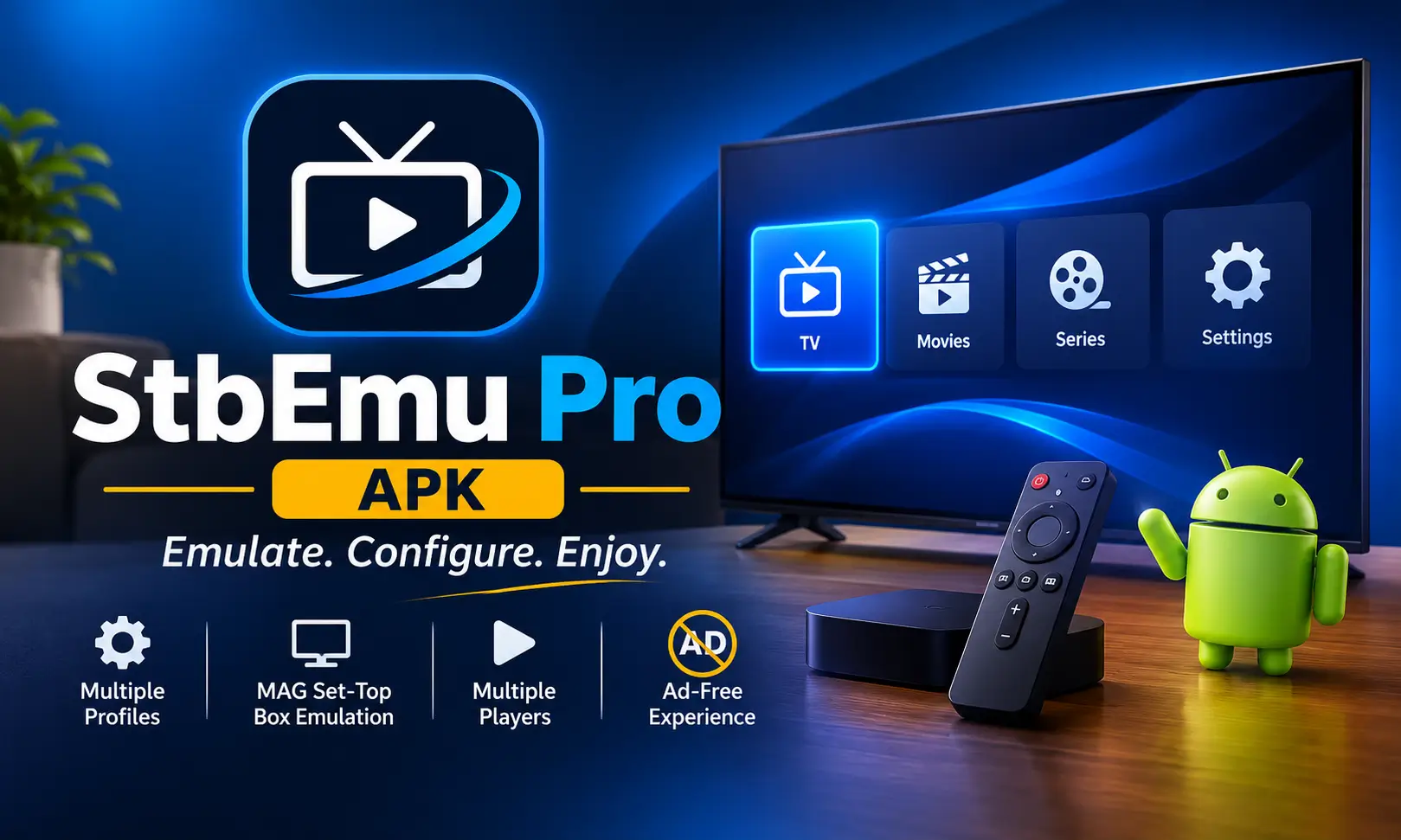
StbEmu Pro APK is an Android application designed to emulate selected IPTV set-top boxes, allowing users to access web portals developed for MAG devices. Instead of working like a traditional IPTV player, it creates a virtual set-top box environment on an Android device. Users can configure the application with their IPTV provider’s portal URL, MAC address, and other device information to load their service.
The stbEmu app is particularly useful for people familiar with MAG-based IPTV systems who want to use the same portal environment on an Android phone, tablet, or TV box. It includes multiple configuration options, different media players, profile management, and remote-control support. The Pro edition also removes advertisements, making the interface more convenient for regular use.
What Is StbEmu Pro APK?
StbEmu Pro APK is a set-top box emulator developed for Android devices. It reproduces the environment of selected Infomir MAG devices, including MAG 250, MAG 270, and MAG 322. These devices are linked with portal-based IPTV systems. Also check: Horizon Emulator APK & Skyline Emulator APK.
The stvemu premium app allows users to enter their provider’s portal URL and configure virtual STB details, such as the MAC address, device ID, firmware, and screen resolution. Once the settings match the provider’s requirements, the application attempts to load the corresponding portal.
One important difference between StbEmu Pro and ordinary IPTV players is how they handle content. Traditional IPTV applications allow users to import M3U playlists, while StbEmu is designed specifically for MAG-style portals. It does not support M3U or similar playlist formats.
StbEmu Pro APK Information
| App Details | Information |
|---|---|
| App Name | StbEmu Pro |
| Developer | M Vasilchuk |
| Latest Version | 2.0.24 |
| Category | Video Players & Editors |
| Android Requirement | Android 8.0 or higher |
| Package Name | com.mvas.stb.emu.pro |
| License | Paid |
| Main Purpose | IPTV Set-Top Box Emulation |
Key Features of StbEmu Pro APK
Multiple Portal Profiles
One of the most useful features is profile management. Users can create multiple profiles and save separate configurations for different IPTV portals on the same device.
Each profile can contain its own portal URL, MAC address, STB model, firmware, language, screen resolution, and media player preferences.
This is convenient when switching between different portal configurations because users do not need to enter all their settings again. They can simply select the required profile and load its associated portal.
MAG Set-Top Box Emulation
StbEmu APK Pro supports emulation of selected Infomir MAG devices. The supported models include MAG 250, MAG 270, and MAG 322.
Users can choose the appropriate STB model according to their provider’s requirements. Other configuration options include firmware, user agent, hardware parameters, serial number, and device ID.
These settings help the application reproduce the expected device environment when communicating with a compatible portal.
Multiple Media Player Options
The StbEmu Pro APK offers several playback options, allowing users to choose a player according to their device and content requirements.
The options include:
- Exo Player: The default option and a recommended choice for most Android devices.
- VLC: An alternative player for handling different media formats.
- MPV: Another playback option available within the application.
- Ijk Player: An additional player option, although subtitle support is unavailable.
- Internal Player: Uses the Android device’s built-in media playback capabilities.
- External Player: Opens supported media streams in another installed application.
Users can select a preferred player separately for each profile. This flexibility is helpful when one player performs better than another on a particular Android device.
Android TV and Remote Control Support
StbEmu Pro apk download can be used on Android TV boxes and compatible television devices. Its interface includes settings for navigation, screen rotation, browser scaling, and remote-key behavior.
Users can also configure remote-control mappings to make navigation easier when operating the application with a television remote.
The Pro edition additionally supports compatible software remote controls designed for MAG 250 devices.
Network and UDPXY Settings
The stbemu pro for android includes network-related options that help users manage portal loading and playback behavior.
Network caching can improve portal loading in many situations, while browser scaling helps adjust how the portal appears on different displays.
There is also UDPXY support for compatible network configurations. Users who do not need this functionality can leave the related settings unchanged.
Ad-Free Experience
The Pro edition does not display advertisements. This is its main difference from the free StbEmu application.
Without advertising interruptions, users can navigate the settings and configured portal more comfortably. It also supports software remote controls for compatible MAG 250 setups. Also visit jzaas capcut pro apk 2027.
StbEmu Pro vs StbEmu Free
Both editions provide the core set-top box emulation functionality. The main differences relate to advertisements and remote-control support.
| Features | StbEmu Free | StbEmu Pro APK |
|---|---|---|
| MAG Device Emulation | Yes | Yes |
| Portal Configuration | Yes | Yes |
| Multiple Profiles | Yes | Yes |
| Media Player Options | Yes | Yes |
| Advertisements | Yes | No |
| MAG 250 Software Remote Support | Not listed | Yes |
| Payment | Free | Paid |
If you only want to test the application and its basic configuration options, the free edition is sufficient. However, people who regularly use the app prefer Pro paid version because it removes advertisements and adds compatible software remote-control support.
How to Download and Install StbEmu Pro APK Latest Version (Paid)
Android users can install StbEmu Pro through the official Google Play distribution. If they are using an APK installation file, the process involves a few additional steps.
- Download the StbEmu Pro APK file from a source you trust like jzaas apk.
- Open your Android device’s Settings.
- Find the option for installing unknown apps or allowing app installations from the browser or file manager.
- Grant the required installation permission.
- Locate the downloaded APK file using your file manager.
- Tap the file and select Install.
- Wait for the installation to finish.
- Open StbEmu Pro and begin configuring your profile.
StbEmu Pro APK Android TV Download
StbEmu Pro is designed to work with Android devices, including Android TV boxes. Its television-oriented controls make it suitable for users who prefer watching through a larger display.
To install it on Android TV, open Google Play on your television, search for StbEmu Pro, and install it directly.
After installation, open the application and use your television remote to navigate the configuration menu. Some settings are easier to manage with a wireless keyboard or mouse.
StbEmu Pro APK Fire TV and Firestick Latest Version
Fire TV and Firestick users also interested in running StbEmu Pro apk on their devices. However, Fire TV should not be confused with officially documented Android TV support.
To install StbEmu Pro on a Fire TV Stick, first open Settings → My Fire TV → Developer Options and enable Install Unknown Apps for Downloader. Next, install and open Downloader, enter the download address of a compatible StbEmu Pro APK, and download the file.
Select Install after downlading. Once installed, open the application, create a profile, and enter your IPTV portal URL and MAC address.
How to Set Up StbEmu Pro APK Free
Installing the application is only the first step. Users must configure the portal and STB information before they can access their IPTV service.
Step 1: Create a Profile
Open StbEmu Pro and navigate to Settings. Select Profiles to access the profile management section.
The application creates an initial profile automatically. You can edit this profile or create additional ones for different portal configurations.
Give your profile a recognizable name so you can identify it easily later.
Step 2: Enter the Portal URL
Open the portal settings and locate the Portal URL field.
Enter the exact portal address supplied by your IPTV provider. Make sure the address is complete and includes the appropriate HTTP or HTTPS prefix.
Step 3: Configure the MAC Address
Navigate to the STB configuration section and locate the MAC address field.
Enter the MAC address provided or registered with your service provider. Some portals require a specific MAC address format, so avoid changing it without checking the provider’s instructions.
Other available settings include the STB model, firmware, serial number, and device ID. Most users should initially keep the default firmware unless their provider requires something different.
Step 4: Select a Media Player
Open the media player settings and choose your playback option.
Exo is a suitable starting point for most devices. If you experience playback problems, you can test VLC or another available player.
Step 5: Load the Portal
Save your configuration and return to the main application screen. Reload the portal to apply the settings.
If the portal URL, MAC address, and other required details are correct, the provider’s interface should load.
StbEmu Pro for iOS, Apple TV and DMG
StbEmu Pro is primarily an Android application. Its official documentation identifies Android phones, tablets, and TV boxes as supported device categories.
There is no officially documented native iOS version, Apple TV application, or macOS DMG installer in the developer’s download information.
StbEmu Pro iOS Free Download: Users searching for an iPhone or iPad version should know that an official iOS release is not established.
StbEmu Pro Apple TV: There is no confirmed native Apple TV version. Android TV support does not automatically mean Apple TV compatibility.
StbEmu Pro DMG: DMG is a macOS application installation format. No official StbEmu Pro DMG version is documented for Mac computers.
Pros and Cons of StbEmu Mod APK
| Pros | Cons |
|---|---|
| Supports multiple portal profiles | Requires manual configuration |
| Emulates selected MAG devices | No channels or playlists included |
| Offers several media player options | Does not support M3U |
| Works with compatible Android TV devices | Advanced settings can confuse beginners |
| Supports remote-control configurations | Requires a compatible IPTV portal |
| Pro edition is ad-free | Paid application |
Troubleshooting Common StbEmu Pro Issues
Even after entering the required information, users occasionally experience configuration or playback problems. Most issues are related to portal settings, device compatibility, or network connectivity.
Portal Not Loading: Check the portal URL and make sure it has been entered correctly. Also confirm that your internet connection is working and that the provider’s portal is available.
MAC Address Rejected: Verify that the MAC address matches the one registered with your provider. Some portals require a particular MAC address prefix or device registration before allowing access.
Black Screen During Playback: Try switching from Exo to VLC or another available media player. If the problem continues, check whether the provider’s stream is working.
Buffering Problems: Check your internet connection and restart the portal. You can also review the network caching settings. If buffering continues across different channels, contact your provider.
Remote Control Not Working: Check the remote-control compatibility and key mapping settings. If you are using a software remote, make sure it supports the required MAG device.
Portal Loads but Content Is Missing: This is related to the provider’s portal configuration rather than the application itself. Contact your service provider to check the account and portal settings.
StbEmu Pro Customer Service
For technical assistance, users can consult the official StbEmu documentation, which includes installation instructions, profile configuration, settings explanations, and troubleshooting information.
The developer also provides support through the following email address:
Email: [email protected]
Frequently Asked Questions

Abhishek Sharma is a technology enthusiast and experienced content writer with a strong interest in mobile apps, games, software, and the latest developments in the digital world. He enjoys exploring new applications and gaming platforms, testing their features, and sharing useful information in a simple and easy-to-understand way.